
Dengue Voz
Your voice is now under Licenciado Dengue’s authority.
ZIP / v0.1.5 / VST3
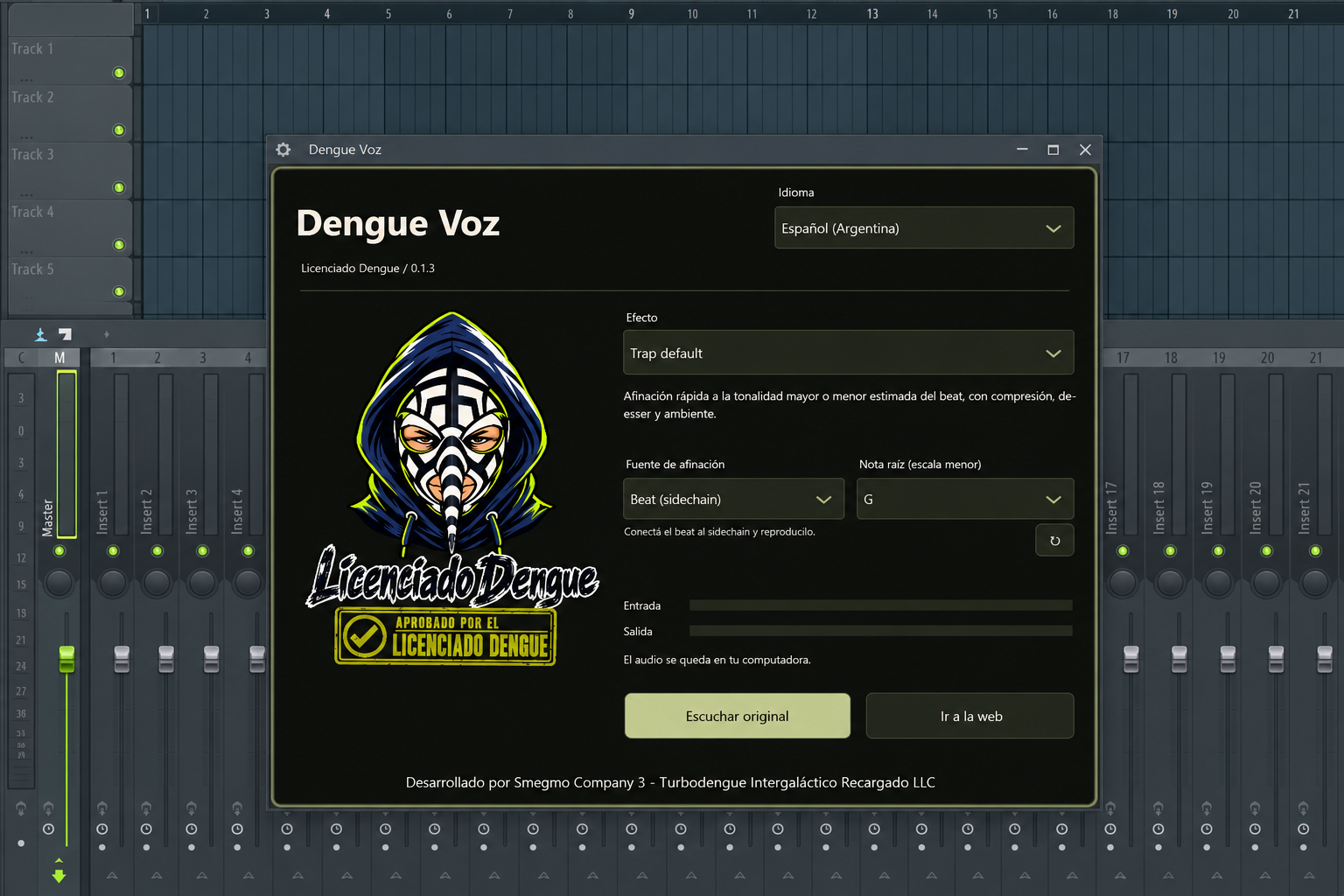
Seven authorised voices.
- Mosquito
- One octave up, a thin voice and reduced bass.
- Satanic
- One octave down, saturation and an otherworldly echo.
- Trap default
- Vocal chain tuned to the major or minor key estimated from the beat, or a manual note in a minor scale. EQ, compression, de-essing and ambience.
- Dizzy mosquito
- A high, thin voice that smoothly rises and falls in pitch.
- Cumbia
- Gentle tuning, light compression and a short, roomy echo.
- Reggaetón
- Tight tuning, firm compression and a short stereo double.
- Ultra edited
- Hard tuning, altered formants and a deliberately robotic, digital texture.
Master Dengue
Use on the Master channel: gentle equalization, stereo compression and a limiter.
From file to FL Studio.
For live vocals, use headphones and start at low volume. Pitch correction adds latency.
1. Dengue Voz.vst3
Close FL Studio and extract the ZIP. Keep the entireDengue Voz.vst3folder together.2. VST3
Copy that folder intoC:\Program Files\Common Files\VST3\. Windows may ask for administrator permission.3. Options → Manage plugins
Open FL Studio. Go toOptions → Manage plugins, enableVerify pluginsand clickFind installed plugins.4. Mixer / Dengue Voz
In the Mixer, select the channel carrying your recorded vocals or assign your microphone input. AddDengue Vozto an effect slot on that channel.5. Seven authorised voices.
Choose an effect. Trap default, Cumbia, Reggaetón and Ultra edited offer beat reference or a manual root note in a minor scale. Use Hear original to compare. Save the project to keep your settings.
Windows / macOS / Linux
Windows x64
Extract the ZIP. Copy the entire plugin folder to the VST3 directory shown below. Then rescan plugins in FL Studio. Open instruments in the Channel Rack and the vocal effect in the Mixer.
C:\Program Files\Common Files\VST3Options → Manage plugins → Find installed plugins
macOS 15+ / arm64 / x86_64
Extract the ZIP. Copy the entire plugin bundle to the directory shown below. Restart your VST3 host and rescan its plugins. Requires macOS 15 or later and the matching processor architecture.
~/Library/Audio/Plug-Ins/VST3macOS: ad-hoc signature; not notarized by Apple. The system may ask for permission to open this app.
Linux x86_64
Extract the ZIP. Copy the entire plugin folder to the directory shown below. Restart your VST3 host and rescan its plugins. Requires Linux x86_64 with glibc 2.39 or later and X11.
~/.vst3Automated audio and native interface tests passed. Listening in a physical DAW remains to be checked.
Let the beat suggest the key.
The tuned modes can analyze about eight seconds of the instrumental through a sidechain input. The estimated major or minor key stays locked until you analyze again.
1. Mixer / Sidechain to this track
Put
Dengue Vozon the vocal Mixer track. On the beat track, right-click the routing arrow beneath the vocal track and chooseSidechain to this track.2. Processing → Connections / Beat
In the plugin wrapper, open
Processing → Connections. Enable the auxiliary input namedBeatand assign the beat sidechain to it. Keep the vocal on the main input.3. Trap default / Cumbia / Reggaetón / Ultra edited
Choose Trap default, Cumbia, Reggaetón or Ultra edited and the beat tuning source. Play a section with bass or chords until a key appears. Use the analyze-again control to start another estimate.
This is an estimate, not a certainty. Drums alone, sparse notes, key changes and relative major/minor keys can make the result ambiguous. If there is no clear result, the manual note in a minor scale is used.
You can choose the manual source and its root note at any time. The beat is only analyzed; it is not mixed into the vocal output. Audio stays on your computer.